Choosing a touch screen display is more complicated than comparing screen size and price. A panel that looks impressive in a showroom may perform poorly beside a sunny window. Fingerprints, glare, glove use, and constant tapping can quickly expose weak design choices.
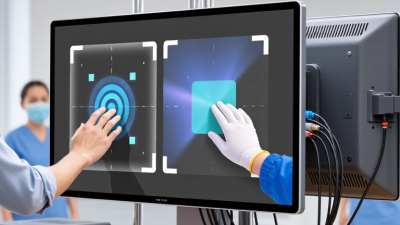
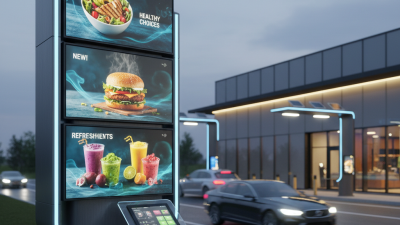
This guide explains how to evaluate a touch screen display with practical judgment. It considers touch technology, brightness, viewing angles, resolution, durability, response time, and connectivity. It also examines the environment where the display will operate. A restaurant kiosk faces grease and repeated contact. A medical workstation needs easy cleaning and dependable operation. A factory control panel may require protective glass and accurate input with gloves.
Real use matters.
Specifications still need careful interpretation. A high brightness rating does not guarantee comfortable viewing, especially when reflections remain strong. A fast response time may sound valuable, yet it cannot fix poor touch accuracy. Capacitive screens often feel smooth, but they may not suit every glove or working condition. Resistive technology can offer practical advantages, though its surface may feel less responsive.
The right choice depends on people, surroundings, and workload. It also depends on details that product pages sometimes overlook. Consider installation space, mounting orientation, operating temperature, warranty support, and long-term replacement costs. No display is perfect. Even a carefully selected model may require calibration or a better protective cover after installation. By comparing verified specifications with real operating needs, buyers can make a more reliable decision and avoid paying for features they will rarely use.
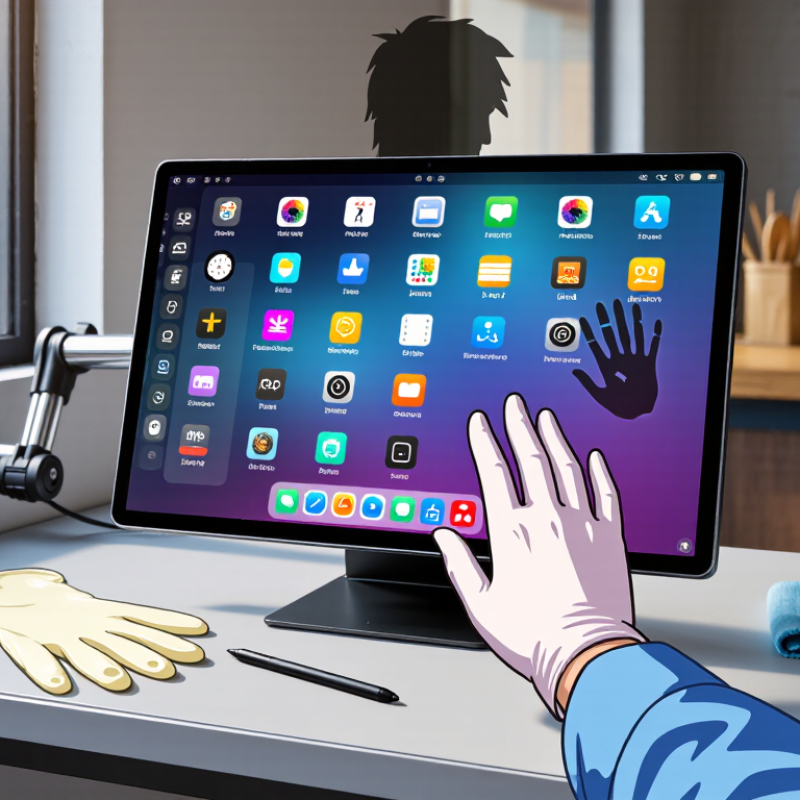
Start with the task, not the screen size. A warehouse terminal needs fast input, glove compatibility, and resistance to dust. A reception display needs quiet operation, wide viewing angles, and simple cleaning. Outdoor equipment faces direct sunlight, rain, temperature shifts, and accidental impact. These conditions should shape the specification before appearance does.
Glare changes everything. Measure the actual installation area at different times of day. A window behind the user can wash out dark interface elements. As a practical starting point, indoor displays often use 300–500 nits, while bright outdoor areas may require 1,000 nits or more. This is not a universal rule. The International Commission on Illumination stresses that visual comfort depends on luminance, contrast, and surrounding light. The WHO World Report on Vision also estimates that at least 2.2 billion people live with some form of vision impairment. Clear text and adjustable contrast are not minor conveniences.
Place a sample display at the intended height and viewing distance. Check reflections, finger accuracy, response time, and readability at a 45-degree angle. For public or industrial settings, review IEC 60529 ingress ratings and IEC 62262 impact classifications. A high rating alone does not guarantee usability. I have seen bright panels fail because their glass reflected a nearby lamp. The showroom can mislead you. Selective testing is safer than optimistic assumptions.
Choosing a touch screen display starts with the task, not the appearance. Resistive touch works well with gloves, pens, and wet environments. It usually offers precise input but feels less fluid for gestures.
Projected capacitive touch feels fast and natural. It supports multi-touch and suits kiosks, tablets, and control panels. However, thick gloves or heavy moisture may reduce accuracy.
Display type changes how users read and react. IPS panels provide wide viewing angles and consistent colors from the side. VA panels often deliver deeper contrast, useful in dim rooms.
Bright outdoor installations need strong luminance, anti-glare glass, and careful thermal planning. A glossy surface can look vivid indoors, yet reflect windows badly. I have seen users shade screens with their hands. That detail matters.
Tips: Match screen size to viewing distance and content density. A 7-inch display may suit compact machine controls, while 15 inches gives forms more breathing room. Larger screens are not automatically better. Measure the mounting space, cable path, and reachable touch zones. Test the interface with real gloves, fingerprints, and changing light. One overlooked issue is fatigue: a high-mounted screen can strain shoulders. Check response time, durability ratings, and operating temperature before purchase. Then challenge your own assumptions; a cheaper, smaller panel may perform better in the actual workspace.
A sharp image begins with resolution, but higher numbers are not always better. For a small control panel, excessive resolution may add cost without improving daily use. I usually compare text clarity, icon size, and viewing distance. A 1920 × 1080 display often suits medium-sized interfaces. For detailed maps or technical drawings, a higher resolution can reduce eye strain. Test real content, not only sample images.
Brightness matters when sunlight reaches the screen. A display that looks excellent indoors may become difficult to read beside a window. In practical testing, I check white backgrounds, dark menus, and reflections at different times of day. Automatic brightness can help, but it may react slowly or become distracting. More brightness also increases heat and power use. That trade-off is easy to overlook.
Durability depends on more than surface hardness. Look for scratch resistance, reliable touch response, and protection from dust or moisture when the environment demands it. Viewing angles deserve an honest test. Stand above, below, and beside the display. Colors may shift, while dark areas can lose detail. Gloved operation and repeated tapping should also be tested before installation. I once trusted a specification sheet and missed a severe reflection problem. That mistake changed my evaluation process. Specifications guide the decision, but hands-on testing reveals the inconvenient parts.
Choosing a touch screen display starts with compatibility, not screen size. Check the operating system, resolution, touch protocol, and required drivers. Most capacitive panels use USB for touch input and HDMI, DisplayPort, or USB-C for video. USB-C can carry video, data, and power, but every port and cable does not support all three. I have seen impressive displays fail because the computer offered video output but no touch return channel.
Connectivity also depends on the room. Confirm cable length, charging capacity, network access, and available input ports. UNESCO’s 2023 Global Education Monitoring Report found internet access for educational purposes in only 40% of primary schools worldwide. Offline tools, local content, and simple device pairing still matter. A display may offer wireless casting, annotation, split-screen viewing, and multi-user touch. Yet these features need testing across Windows, macOS, ChromeOS, tablets, and guest devices. Compatibility claims can be too optimistic.
Tips: Bring your actual laptop and cables for a live test. Check whether touch works through the chosen adapter. Test ten-finger input, handwriting delay, palm rejection, and speaker volume from the back of the room. Review security controls for wireless sharing. Also ask about firmware updates and replacement parts. My own checklist once ignored glare; bright windows made handwriting uncomfortable. That was a useful mistake. A short trial reveals more than a polished specification sheet.
A practical comparison guide for selecting a touch screen display based on device compatibility, connection requirements, and interactive performance.
| Selection Dimension | What to Check | Practical Recommendation | Why It Matters |
|---|---|---|---|
| Screen Size | Available space, viewing distance, and number of users. | 15–24 inches for desks and control panels; 27 inches or larger for shared viewing and collaboration. | A larger screen improves visibility but requires more desk, wall, or mounting space. |
| Resolution and Aspect Ratio | Native resolution supported by the computer or media source. | Full HD (1920 × 1080) is suitable for general applications; 2560 × 1440 or 3840 × 2160 provides more workspace and detail. | The source device, cable, and display must support the selected resolution and refresh rate. |
| Operating System Compatibility | Operating system support and availability of touch drivers or HID recognition. | Choose a display that supports standard USB Human Interface Device input and verify compatibility with Windows, macOS, Linux, ChromeOS, or the intended embedded system. | Video may work even when touch input does not, because touch usually requires a separate USB connection. |
| Video Connectivity | Input ports on the display and output ports on the source device. | HDMI is widely compatible; DisplayPort is useful for high-resolution computer connections; USB-C can carry video when DisplayPort Alt Mode is supported. | A matching connector alone is not enough; the source device must support the required video standard. |
| Touch Connectivity | Whether touch data uses USB-A, USB-C, or another supported interface. | Use a dedicated USB data connection unless the display explicitly supports touch and video over one USB-C cable. | Many HDMI and DisplayPort connections transmit video only and do not carry touch commands. |
| Touch Technology | Projected capacitive, infrared, optical, or resistive touch system. | Projected capacitive touch is suitable for smooth glass interfaces; infrared or optical systems are useful for larger interactive screens. | Technology affects touch accuracy, durability, glove operation, cleaning requirements, and bezel design. |
| Multi-Touch Capability | Number of simultaneous touch points supported by the display and operating system. | At least 10-point touch is appropriate for gestures and collaborative applications; confirm the actual specification before purchase. | Higher touch-point support enables pinch-to-zoom, rotation, handwriting, and multiple-user interaction. |
| Touch Accuracy and Latency | Cursor alignment, edge accuracy, palm rejection, and response behavior. | Look for factory calibration, stable edge performance, and a response time appropriate for writing, drawing, or control tasks. | Low latency and accurate tracking make handwriting, drag-and-drop actions, and on-screen controls easier to use. |
| Brightness and Viewing Angle | Ambient light, glare, viewing direction, and indoor or outdoor installation. | Around 250–350 cd/m² is generally adequate indoors; brighter models and anti-glare surfaces are preferable in strong ambient light. | Brightness and surface treatment affect readability, reflections, and user comfort. |
| Surface and Durability | Glass hardness, scratch resistance, cleaning method, and expected usage intensity. | Select a hardened glass surface for frequent interaction and confirm resistance to common cleaning agents. | The surface must withstand repeated touches, cleaning, and accidental contact without reducing touch performance. |
| Mounting and Ergonomics | VESA mounting pattern, stand adjustment, tilt range, bezel size, and cable routing. | Confirm the mounting dimensions and load capacity; use adjustable tilt or height positioning for prolonged interaction. | Correct positioning reduces glare, wrist strain, and accidental touches. |
| Power and Cable Requirements | Power input, adapter rating, cable length, and whether a single-cable setup is possible. | Check voltage requirements and use certified cables that support the required video bandwidth and USB data rate. | Insufficient power or unsuitable cables can cause flickering, intermittent touch, or failure to reach the desired resolution. |
| Interactive Features | Need for stylus input, palm rejection, annotation, gesture control, speakers, or headphone output. | Prioritize active-pen support for writing and drawing; choose built-in audio or additional ports only when they match the application. | Extra features should support the workflow rather than add cost or compatibility requirements without practical benefit. |
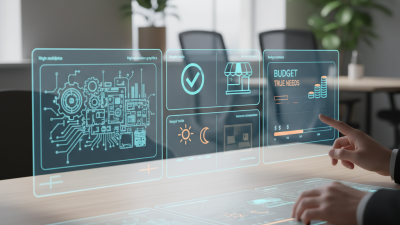
Choosing a touch screen display should begin with the total cost, not the lowest purchase price. A budget model may save money today, but weak brightness, fragile glass, or limited support can create higher replacement costs later. Consider the display’s daily workload, expected service life, and installation environment. A screen used near windows needs strong brightness and reduced glare. A panel used in a workshop may need durable protection and reliable touch response with gloves.
Long-term value also depends on repair options, warranty coverage, energy use, and available spare parts. Check the viewing angle, port selection, operating temperature, and mounting method before buying. These details often matter more than attractive specifications. Touch technology should match the task. Capacitive touch feels smooth, while other technologies may perform better with gloves or in dusty settings. The cheapest option is not always economical. Yet, premium features can be unnecessary for simple office work.
Tips: Compare three-year ownership costs, not just the purchase price. Test the screen under real lighting. Ask how repairs are handled. Leave room in the budget for cables, mounts, and future maintenance. I would also record the exact requirements before shopping; changing them later can be expensive. A small spreadsheet helps expose weak assumptions. Do not ignore user comfort, either. A technically excellent display can still fail if its height, size, or touch sensitivity causes daily frustration.